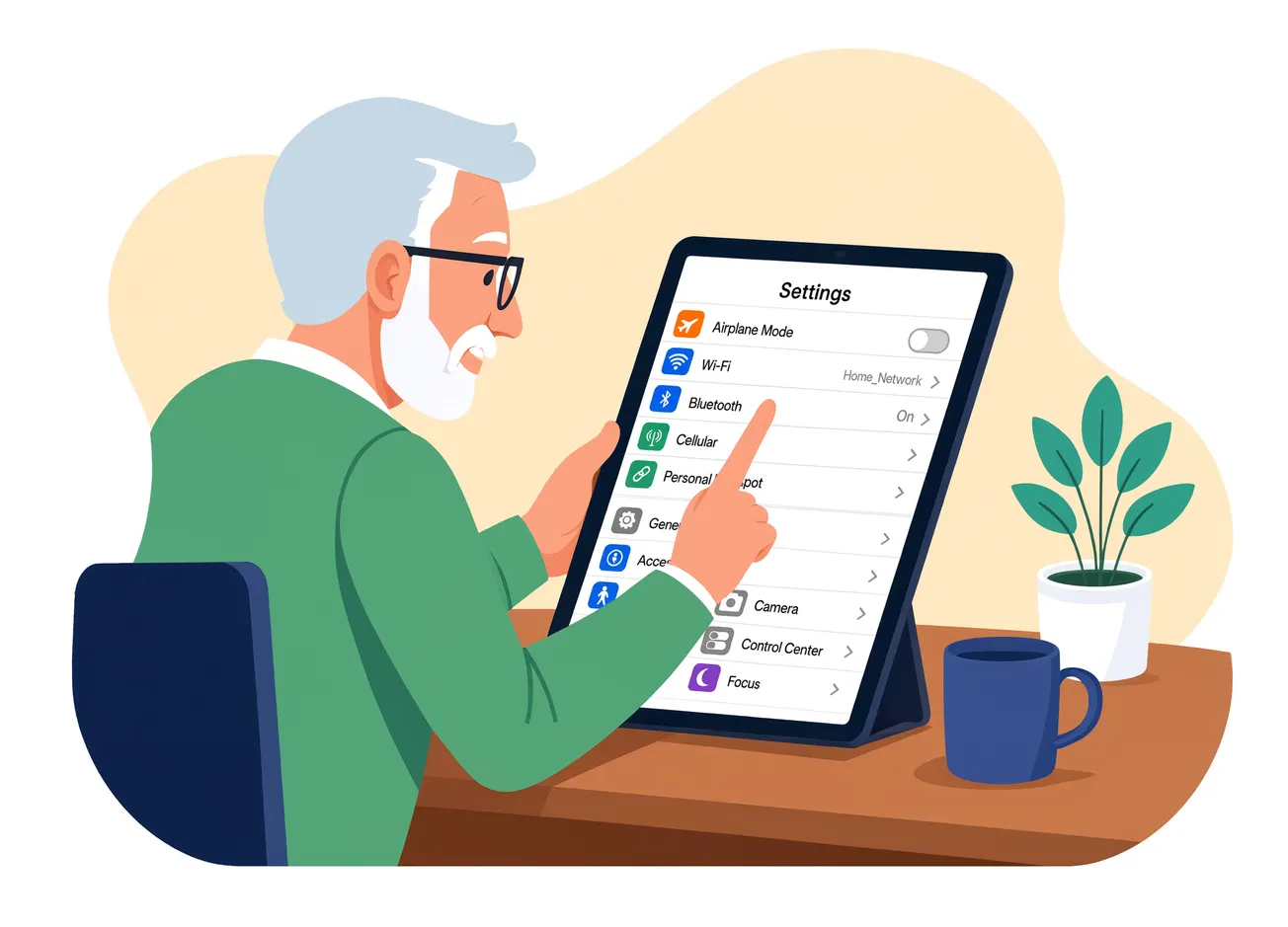
You get a new iPad. Open up the box. Charge it up. Turn it on. Start adding in your apps. That's how it typically goes, right?
Settings? Lord, no—that's not something you touch, right?
Probably.
But you don't know what you're missing. Easier reading for one thing. A way to keep the kind of screen light on that keeps you from falling asleep for another. A third? How to find your iPad if it ever goes missing.
Rich Bowlin shares simple, easy-to-understand iPad tips on his YouTube channel designed to help seniors use their devices without frustration. Here's one that we thought might be right up the alley of those SSD readers with iPads—for all tablets for that matter. Many of the same tips apply, so we've built a separate how-to section for Android/Samsung users.
The Android Version of Those 5 Tips
Bigger, bolder text
Same idea, different menu. Open Settings, scroll down and tap Accessibility, then tap Display size and text (on Samsung phones it's under Accessibility, then Visibility enhancements, then Font size and style). You'll see a Bold text toggle, just like on iPad, tap it on. Below that is a font size slider, drag it to the right until text feels comfortable. There's also a separate Display size slider on the same screen that enlarges icons, buttons and menus, not just text, which is worth bumping up too since Android relies more on icon size than iPad does.
Night Light
Android's version of Night Shift is called Night Light (Samsung calls it Eye comfort shield). Go to Settings, tap Display, then tap Night Light. Turn on Schedule and set it to sunset to sunrise, then use the intensity slider to warm up the color as much or as little as you like. Functionally it does exactly what Night Shift does on the iPad.
Screen timeout instead of Auto-Lock
Same problem, same fix, different name. Go to Settings, tap Display, then tap Screen timeout (sometimes labeled Sleep). You'll get options usually ranging from 15 seconds up to 30 minutes, occasionally with a Never option depending on the phone. I'd recommend 15 minutes, same as the iPad tip, for the same reason: enough time to read without the screen going dark mid-task, but it'll still lock itself if you walk away. And the same battery caveat applies if you leave it on Never.
Find Hub instead of Find My iPad
This is the one with a name change worth flagging. Google rebranded "Find My Device" to Find Hub. If you're signed into a Google account on the phone, it's on by default, but it's worth double checking. Go to Settings, tap Google (or Security and privacy on some phones), then tap Find Hub, and confirm it's turned on. There's also a setting for sharing the phone's last known location over Google's device network even after the battery dies, similar to Apple's Send Last Location, look for it in the same Find Hub settings screen.
Notifications
Nearly identical process to iPad. Go to Settings, tap Notifications, then tap App notifications (or Apps, depending on phone), and you'll see the full list of apps with their notification status. Same advice applies: work through the list and ask whether each app actually needs to interrupt you. Tap into any app to turn off notifications entirely or dial back to just sounds or badges. Keep it on for calls, messages and email, turn off the rest.
One general caveat worth including if this becomes a script or article: unlike iPad, which is one device made by one company, Android instructions can shift depending on whether someone has a Pixel, Samsung, Motorola, etc. The four settings above (Accessibility, Display, Notifications, Find Hub/Google) are consistent across nearly all Android phones, just sometimes nested one menu deeper or under a different label on Samsung.
Here's Bowlin's iPad take...